
How to Connect Your Tinyhat Hermes Agent to Slack
Connect your private Tinyhat Hermes Agent to Slack with secure token entry, user and channel allowlists, explicit mentions, and cross-platform messaging.
Telegram is a convenient place to set up and manage Hermes. Slack is often where the work and the team already live. You can connect the same Hermes Agent to both, then ask it to post in an approved Slack channel from Telegram or mention it directly inside Slack.
The connection uses Slack Socket Mode. Your Tinyhat computer opens an outbound WebSocket to Slack, so you do not need to expose a webhook or public server.
What you will be able to do
Once Slack is connected, you can:
- Direct-message your Hermes bot in Slack.
- Mention it in an approved public or private channel.
- Keep each Slack thread focused on its own conversation.
- Ask Hermes in Telegram to send a message to a specific Slack channel.
- Attach files and images when the Slack app has the matching permissions.
A Slack thread does not automatically inherit your active Telegram transcript. Your durable preferences can carry across platforms, but each thread keeps its own working context.
Before you start
You need:
- A running Hermes Agent on your Tinyhat computer.
- Permission to install an app in your Slack workspace, or an administrator who can approve it.
- Your Slack Member ID.
- One or more Slack channels where the bot is allowed to operate.
You do not need to copy commands into a server terminal. Ask Hermes in Telegram to guide you through the connection one step at a time. Hermes will generate the manifest that matches the version running on your computer.
1. Ask Hermes to generate the Slack manifest
Send a message like this to Hermes in Telegram:
Help me connect you to Slack. Generate the Slack app manifest and guide me one step at a time.
Hermes will create a JSON manifest and attach it to the chat. The manifest declares the Slack permissions, message events, Socket Mode setting, and Hermes slash commands.
Open Slack API Apps, select Create New App, and choose From an app manifest. Pick your workspace, paste the complete manifest, review it, and create the app.
The exact manifest mode may differ between Hermes releases. Let Hermes choose the compatible version rather than editing it by hand.
2. Install the app and store the bot token privately
In the new Slack app, open Settings → Install App, then select Install to Workspace and approve the requested permissions.
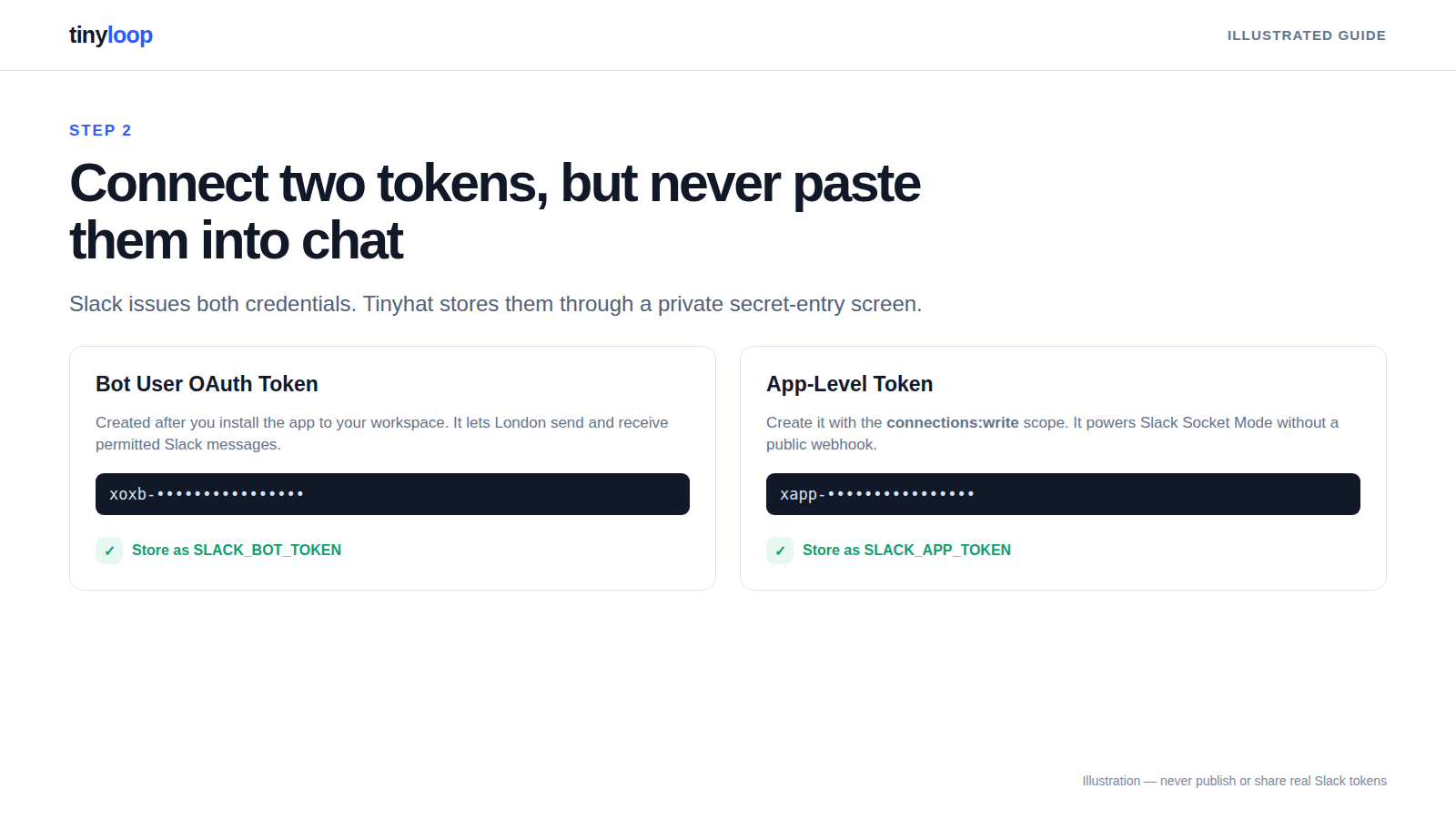
Slack will display a Bot User OAuth Token that begins with xoxb-.
Do not paste this token into Telegram, Slack, email, or a shared document. Tell Hermes that you have the bot token. Tinyhat will open a private secret-entry screen where you can save it as SLACK_BOT_TOKEN. The plaintext token does not need to appear in the conversation.
3. Create the Socket Mode token
The bot token identifies the app, but Socket Mode needs a second credential.
In your Slack app:
- Open Settings → Basic Information.
- Find App-Level Tokens.
- Select Generate Token and Scopes.
- Name it
hermes-socket. - Add the
connections:writescope. - Generate the token.
The result begins with xapp-. Again, do not paste it into chat. Ask Hermes to open the private entry screen and store it as SLACK_APP_TOKEN.
Socket Mode lets the Tinyhat computer connect to Slack without opening an inbound network endpoint.
4. Authorize your Slack account
Slack uses Member IDs rather than display names for access control.
Open your Slack profile, select the three-dot menu, and choose Copy member ID. It will look similar to U01ABC2DEF3.
A Member ID is an identifier, not a password, so you can send it to Hermes in the normal chat. Hermes will add it to the Slack user allowlist.
Do not enable access for the whole workspace unless you genuinely want every member to use the agent. Start with one person, test the workflow, and add colleagues by Member ID only after you approve them.
5. Restart and test the Slack direct message
After both tokens and your Member ID are configured, restart the Hermes gateway by sending:
/restart
Open the "AgentName" or Hermes app in Slack and send a direct message. An authorized one-to-one DM does not require an @mention.
If the DM works, the credentials and Socket Mode connection are healthy. Channel access is a separate test.
6. Invite Hermes to one channel
Open the Slack channel where you want to test the bot and enter:
/invite @AgentName
Use the display name you chose when creating the Slack app.
Then mention the bot:
@AgentName Confirm you can see this channel.
Hermes should answer in a thread attached to that message. Private channels work too, but the bot must be invited before it can receive their messages.
7. Add the channel guardrail
Being invited to a channel is not the same as being authorized to operate there. Ask Hermes to discover the channel's immutable Slack ID and add it to the approved-channel allowlist.
A strong default policy has three layers:
- Only named Slack Member IDs can trigger Hermes.
- Only approved channel IDs can reach it.
- Shared-channel requests must explicitly mention the bot.
With those controls in place, a different team member cannot get an answer merely by tagging the bot. You must add that person's Member ID first. A mention is a trigger, not an authorization grant.
Keep per-user session isolation enabled as well. If you later authorize another person, their Slack conversation should not share your history or let them reset your session.
8. Test Telegram-to-Slack delivery
Return to Telegram and ask:
Send this to Slack #random: Your agent is connected and ready for testing.Hermes should resolve the approved channel, send the message, and verify Slack's success response. For recurring automations, use the channel ID rather than depending only on the channel name.
This is useful for meeting reminders, monitoring alerts, completed research, or any workflow that begins in one interface and needs to land where the team works.
How your agent behaves in Slack
- Authorized one-to-one DM: Responds without an
@mention. - Approved public or private channel: Responds when an authorized user explicitly mentions the bot.
- Unapproved channel: Ignores the message, even if mentioned.
- Unapproved user: Does not run the request.
- Existing Slack thread: Keeps the conversation inside that thread.
- Telegram request targeting Slack: Sends only to the requested approved destination.
If you want a collaborative channel where several people can ask questions, add each person deliberately. Do not replace the allowlist with workspace-wide access just to save a minute during setup.
Troubleshooting
The bot works in DMs but not in channels
Check these items in order:
- The app is invited to the channel.
- You are using an explicit
@mention. - Your Member ID is authorized.
- The channel ID is approved.
- The app has the
message.channelsevent andchannels:historyscope for public channels. - Private channels also have the
message.groupsevent andgroups:historyscope. - The app was reinstalled after any Slack permission change.
- The Hermes gateway was restarted after configuration changes.
Slack reports an authentication error
Confirm that the bot token starts with xoxb-, the app-level token starts with xapp-, and the app-level token has connections:write. Replace either credential through Tinyhat's private secret-entry screen rather than sending it in chat.
Someone else cannot use the bot
That is expected until you approve their Slack Member ID. Channel membership and @mentions do not bypass the user allowlist.
Keep the first Slack workflow small
Start with one user, one channel, and one harmless test. Once you have verified Slack DM input, channel mention input, and Telegram-to-Slack output, add the next person or channel deliberately.
This takes a few more minutes than opening the bot to the whole workspace. It also gives you a clear answer to two important questions: who can ask the agent to act, and where can it respond?
For the underlying Hermes configuration and the current Slack scope list, see the official Hermes Slack documentation.
An optional Slack action reports missing_scope
The manifest generated by Hermes covers the standard Slack connection, but an optional workflow may need an additional Bot Token Scope. For example, adding emoji reactions requires reactions:write.
- Open Slack API Apps, select your app, and go to OAuth & Permissions.
- Under Bot Token Scopes, add only the permission required by the feature. For emoji reactions, add
reactions:write. - Select Reinstall to Workspace and approve the updated permissions.
- Retry the action. If you also changed Hermes configuration, restart the Hermes gateway before testing again.
Keep the app least-privileged: a missing_scope error is a reason to review the specific feature and permission, not to add broad scopes preemptively.


Comments ()